Best PDF Translators in 2026

TABLE OF CONTENTS
PDF translation is easy when the file is mostly plain text. It gets harder when the file is a manual with warning icons, a product spec with multi-column tables, a slide deck, or a scanned PDF that still needs to look usable after translation.
This guide compares seven PDF translation tools on what matters for those documents: layout focus, language coverage, pricing model, and whether you can try before you pay. Claims below come from each product’s public site or help docs — not from invented scores or side-by-side lab tests. We make OpenL Doc Translator. That is disclosed up front so you can read that section with the affiliation in mind.
If you already know you need a layout-safe workflow, start here: translate a PDF without breaking the layout. For step-by-step methods (not tool picks), see How to Translate a PDF Without Losing Formatting and How to Translate PDF Files and Keep Formatting.
Quick picks
| Need | Pick |
|---|---|
| Keep layout on work documents (manuals, specs, PPT, reports) | OpenL Doc Translator |
| European-language plain-text accuracy / glossary workflows | DeepL |
| Free / occasional use | Google Translate |
| Translate, then edit inside the PDF | Adobe Acrobat |
| Offline / data stays on your infrastructure | Lingvanex |
Rule of thumb: if the page has tables, images, columns, or callouts that still need to look like a document, start with a document translator. If you mainly need natural plain text in languages DeepL handles well — and you will paste or reformat afterward — DeepL is often enough.
Translate a technical manual and keep callouts →
What actually breaks when you translate a PDF
Most “bad PDF translations” fail for the same reasons:
- Layout vs. text stretch — German, French, or Spanish often runs longer than English. Columns overflow; captions wrap into figures.
- Tables and multi-column pages — Tools that treat the file as a bag of sentences can shuffle cell order or drop headers.
- Scans and image text — If the page is a picture of text, you need OCR. Google’s consumer Documents tool explicitly does not translate text inside images or scanned PDF pages.
- Delivery workflow — Client-ready files need preview, bilingual review, invoices, or post-edit — not only a raw dump of words.
Those constraints shape the ranking below more than any single “accuracy %.”
How we compared these tools
We ranked tools on public, checkable dimensions:
- Layout focus — Does the product market document structure (tables, images, page layout), or mainly text quality?
- Try-before-pay — Free tier, daily preview, or paid-only?
- Pricing model — Pay-per-use, subscription, or enterprise/custom?
- Formats beyond PDF — DOCX, PPTX, XLSX, EPUB, scans/OCR where documented
- Business extras — Invoices/tax ID, offline/on-prem, API, post-edit in a PDF suite
- Fit for real jobs — Manuals and decks vs. occasional free uploads vs. regulated deployments
We did not invent numeric scores, linguist panels, or fabricated hands-on lab results for this rewrite.
The 7 best PDF translators in 2026
1. OpenL Doc Translator — Best for keeping layout
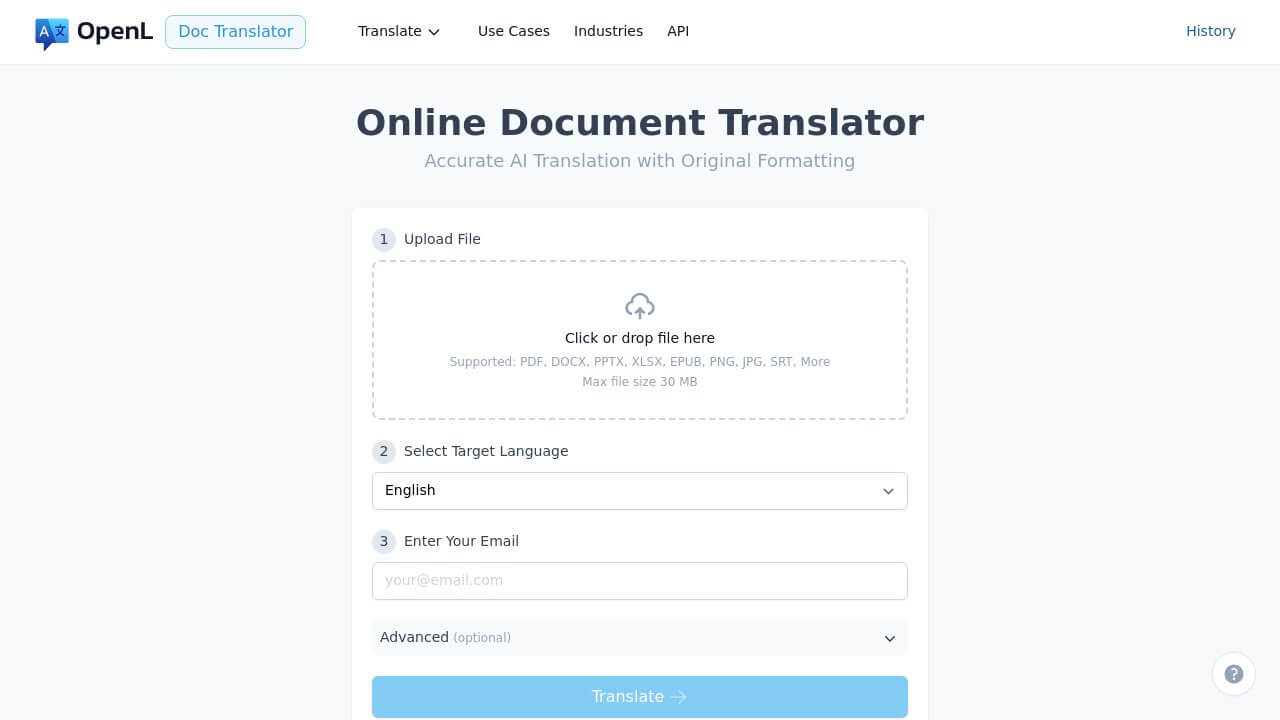
OpenL Doc Translator is built for documents where structure matters: manuals, specification sheets, presentations, reports, and scanned files. The product pitch is explicit: keep fonts, colors, tables, and page layout usable, and return both a translated file and a bilingual side-by-side version for review.
What stands out
- Free daily preview of the opening pages before you pay (about ~2 pages for PDF/DOCX, about ~6 pages for EPUB, with daily preview limits)
- Pay-per-use instead of a monthly subscription (separate from OpenL text-subscription plans)
- Output as a translated file and a bilingual review version
- Formats beyond PDF: DOCX, PPTX, XLSX, EPUB, plus OCR for image text / scans
- VAT invoices with tax ID via Lemon Squeezy (useful for business buyers)
- Refund requests by email if the result is not usable
- Education and non-profit discounts available by email (edu / org requests)
Good for
- Translating a PDF where tables and columns need to stay intact
- Technical manuals with figures and callouts
- PowerPoint / PPTX decks that should still look like slides
- Scanned documents that need OCR plus translation
Trade-offs
- Pay-per-use can cost more than a flat subscription if you translate high volume every day
- Preview covers the opening pages, not the entire file for free
- Like any machine translation, legal / medical / certified use still needs a human pass
Best for: teams and freelancers who care more about a usable layout than about the cheapest free export.
Related reads: Best Scanned PDF Translators in 2026, Best DOCX Translator in 2026.
2. DeepL — Best for European plain-text accuracy
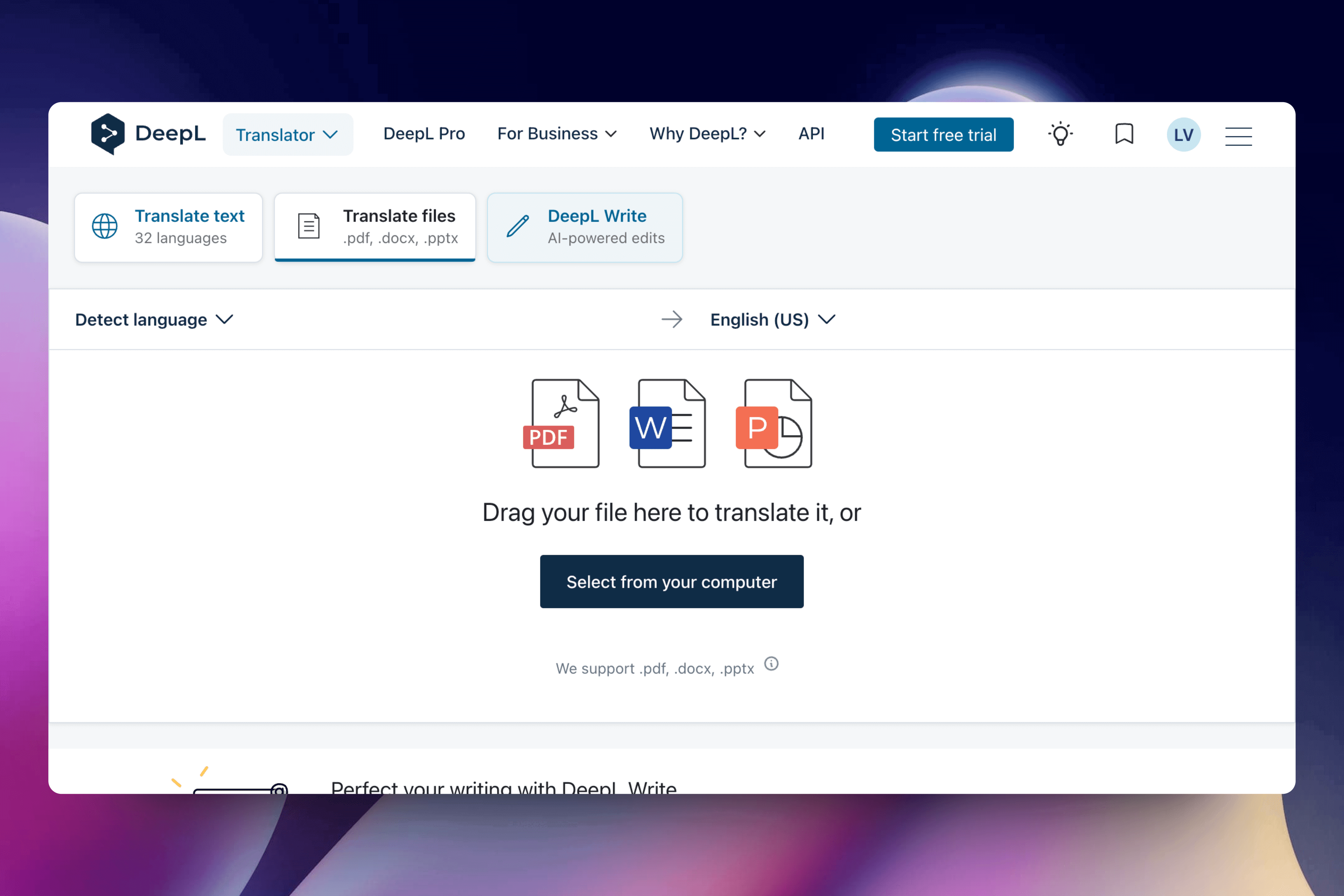
DeepL is widely chosen when the priority is natural phrasing — especially on European language pairs — and when teams want glossaries, formal/informal tone, and a mature file-translation product. DeepL’s PDF product page markets layout preservation and notes that PDFs are a large share of documents translated on the platform. Free accounts can translate PDFs with smaller size/character caps; Pro plans raise limits and unlock bulk / multi-target workflows.
What stands out
- Strong reputation for natural European-language wording
- Formal / informal tone controls on many pairs; glossaries on paid plans
- Free account + Pro subscriptions; API for product integrations
- Broad language list on DeepL’s public language page (far beyond the older “European-only” stereotype — always check the current list)
- Enterprise security positioning (GDPR, ISO 27001, SOC 2, and related claims on DeepL’s site)
Trade-offs
- Complex multi-column or image-heavy pages can still need cleanup — DeepL itself notes OCR/custom-font limits on dense PDFs
- Free PDF limits are tight vs. paid plans (check DeepL’s current file-size table before you upload a large manual)
- Team / high-volume plans can get expensive quickly compared with occasional pay-per-use
Best for: legal, technical, or business text where European-language wording quality (and glossary control) matters more than perfect page layout — or when you will reformat into another system after translation.
When to skip: layout-critical manuals/decks you need to ship with tables intact on a one-off budget — compare OpenL Doc Translator’s preview + pay-per-use path first.
3. Adobe Acrobat — Best when you also need to edit the PDF
Adobe Acrobat combines translation with a full PDF editing suite. That matters when translation is only step one and you still need to fix spacing, replace an image, or adjust text boxes afterward. Acrobat’s current guidance centers translation through AI Assistant on eligible plans (language coverage is narrower than Google Translate or OpenL Doc Translator — confirm the live language list in your Acrobat build). Acrobat Pro remains strong for OCR on scans and for enterprise security/support options.
What stands out
- Translate inside a mature PDF editor, then fix layout in the same app
- Strong OCR path for scanned PDFs
- Practical when design or compliance teams must touch the file after translation
- Enterprise security and support options
Trade-offs
- Requires a paid Acrobat plan; AI Assistant may be an add-on or limited to certain tiers
- Overkill if you only need a one-off translation export
- Language coverage for AI translation is narrower than the broadest free tools
Best for: design, legal, and ops teams that already live in Acrobat and need post-translation editing.
4. Google Translate — Best free / occasional option
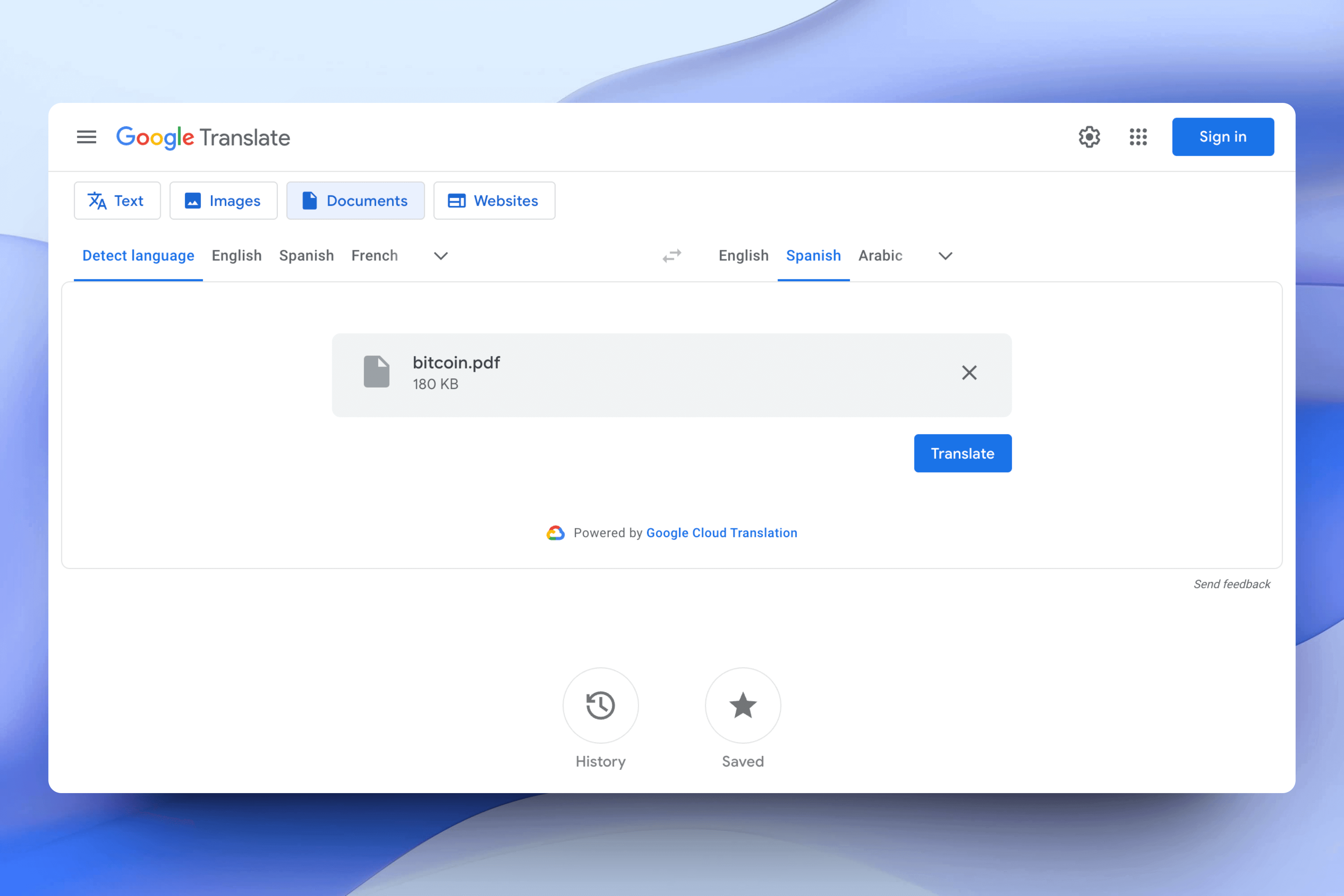
Google Translate remains the default free path for many people. On desktop, the Documents tab accepts .docx, .pdf, .pptx, and .xlsx up to 10 MB (PDFs 300 pages or fewer, per Google Translate Help). You get a quick result across a very wide language set — with the usual free-tool limits on layout and specialized wording.
What stands out
- Free for typical personal use
- Very broad language coverage (Google Translate lists 200+ languages / varieties)
- Fast turnaround for short or simple files
- Easy if you already work in Google Drive / Docs
Trade-offs
- Complex layouts often break
- Per Google Help: text in images and scanned PDF pages is not translated
- Document translation is not available on mobile / smaller screens
- Not ideal for confidential business files
Best for: students, travelers, and anyone translating non-sensitive, text-based PDFs occasionally.
5. Smallpdf — Best simple all-in-one PDF toolkit
Smallpdf Translate PDF bundles translation with a familiar set of PDF utilities (compress, convert, edit-style workflows). It markets translation to/from English and 20+ other languages, with options for a full document or a summary. It is less about maximum language depth and more about getting a usable result without a steep learning curve.
What stands out
- Straightforward browser interface; no install for basic use
- Free use with limits; Pro unlocks higher limits / batch-style workflows
- Extra PDF tools in the same product family
- GDPR-oriented positioning on Smallpdf’s site
Trade-offs
- Fewer languages than Google Translate or OpenL Doc Translator
- Free plan has download / usage limits that push frequent users to Pro
- Not the strongest pick for highly technical terminology or heavy enterprise controls
Best for: small teams that want a simple PDF toolkit and occasional translation in common languages.
6. SYSTRAN — Best enterprise / domain-tuned option
SYSTRAN targets organizations that need industry terminology, custom dictionaries, API hooks, or on-premise deployment. Public positioning covers 50+ languages, 30+ file formats (Office, PDF, XML, IDML, and more), and security-focused deployments for regulated industries. Pricing is usually custom and aimed at teams rather than one-off personal jobs.
What stands out
- Domain / industry specialization options
- Custom terminology and workflow integration
- On-premise / server paths for stricter environments
- Enterprise support models and long track record in MT
Trade-offs
- Setup and cost are heavier than consumer tools
- Poor fit for individuals translating a few pages
- Sales-led pricing rather than a simple public pay-per-page page
Best for: large companies and regulated industries that need controlled terminology and deployment options.
7. Lingvanex — Best offline / privacy-first option
Lingvanex is useful when documents cannot leave the device or network. The company markets on-premise machine translation across 100+ languages, offline/local processing, API options, and speech recognition products. Offline language packs trade some cloud-model polish for local control.
What stands out
- Offline / on-premise translation so data can stay inside your infrastructure
- Broad language list
- Useful for restricted or air-gapped environments
- Free tier plus paid / perpetual-license style options (confirm current packaging on their site)
Trade-offs
- Local packs need disk space and ops effort
- Offline quality is usually below the best cloud models for nuanced marketing copy
- Layout preservation is not the main selling point vs. document-first tools
Best for: privacy-sensitive work where offline processing matters more than perfect formatting.
Feature comparison (facts, not scores)
| Tool | Languages (approx.) | Pricing model | Layout focus | Free / try-before-pay |
|---|---|---|---|---|
| OpenL Doc Translator | 100+ | Pay-per-use | Strong (docs, tables, images) | Daily free preview of opening pages, then pay |
| DeepL | Broad list (see DeepL languages page) | Free + subscription | Strong marketing for PDF layout; still OCR/font limits on dense files | Free account with tight PDF caps; Pro raises limits |
| Adobe Acrobat | Narrower AI Assistant set (check your plan) | Subscription (+ possible AI add-on) | Strong when editing after | Trial / subscription |
| Google Translate | 200+ languages / varieties | Free | Weak on complex layouts; no scan/image-text translate | Free (10 MB / ≤300 PDF pages) |
| Smallpdf | 20+ | Free limits + Pro | Moderate | Free with limits |
| SYSTRAN | 50+ | Enterprise / custom | Moderate–strong (workflow) | Limited / sales-led |
| Lingvanex | 100+ | Free + paid / on-prem | Moderate | Free tier; offline packs |
Exact language counts and plan prices change often — check each product page before you buy.
Best PDF translator for business documents
Business buyers usually care about four things beyond “does it translate”:
- Invoices and tax IDs — OpenL Doc Translator can issue VAT invoices through Lemon Squeezy. Acrobat and enterprise SYSTRAN deals also fit procurement workflows.
- Batch / volume economics — Pay-per-use is simple for irregular jobs; subscriptions win when volume is steady every month.
- Privacy — Prefer tools with clear retention policies, offline/on-prem options (Lingvanex, SYSTRAN Server), or enterprise contracts. Avoid pasting confidential PDFs into free consumer uploaders.
- Review workflow — Look for preview, bilingual output, or post-edit tools so a human can spot numbering, units, and legal phrasing before the file goes out.
For manuals, decks, and scanned packets that must stay readable, OpenL Doc Translator is the layout-first business pick in this list. For European plain text that will be copied into another system — especially with glossaries — DeepL is often enough. For files that must be redesigned in-place after translation, Acrobat is the practical stack.
Free options and their limits
| Option | What you get for free | Typical limit |
|---|---|---|
| Google Translate | Full free PDF upload path on desktop | 10 MB; ≤300 PDF pages; no scan/image-text translation; layout often breaks |
| DeepL Free / account | PDF translation with size/character caps | Smaller files and fewer seats/features than Pro |
| Smallpdf Free | Limited translation + other PDF tools | Caps / Pro upsell for heavy use |
| OpenL Doc Translator | Daily preview of the opening pages (~2 PDF/DOCX; ~6 EPUB) | Full download after payment |
| Lingvanex Free | Online / limited offline access | Pack size and feature gates on paid plans |
Free is fine for personal or low-risk files. For client deliverables, contracts, or anything with tables that must line up, plan on a paid path plus a human pass.
How to choose quickly
- Layout-heavy work docs → OpenL Doc Translator
- European plain text / glossary workflows → DeepL
- Free / rare use → Google Translate
- Translate then edit the PDF → Adobe Acrobat
- Simple toolkit + common languages → Smallpdf
- Enterprise terminology / on-prem → SYSTRAN
- Must stay offline → Lingvanex
Practical habits that help with any tool: OCR scanned pages first when needed, sample the hardest page (table + figure) before running the whole file, and keep a glossary for product names and regulated terms. For scan-specific workflows, see How to Translate a Scanned PDF in 2026.
FAQ
Which service is best for translating a PDF?
It depends on the file. For manuals, specs, slide decks, and other layout-heavy PDFs, choose a document translator such as OpenL Doc Translator. For plain European-language text — especially with glossaries — DeepL is a strong default. For a free occasional job, Google Translate is enough. If you need to rewrite the PDF after translation, use Adobe Acrobat.
What is the most reliable PDF translator?
Reliability is less about a single score and more about process: preview the opening pages, compare a table or figure against the source, and confirm you can get a refund or re-run if the export is broken. Tools that offer preview, bilingual output, or in-PDF editing make that review loop easier.
Is there a good free PDF translator?
Yes — Google Translate is the broadest free desktop option (10 MB / ≤300 PDF pages). DeepL and Smallpdf offer free paths with tighter limits. Free tools are weaker on complex layout, and Google does not translate scanned/image text in Documents mode. OpenL Doc Translator’s free daily preview lets you check the first pages before paying for the full file.
Can I translate a scanned PDF?
Yes, but only if the tool (or a prior OCR step) can read the scan. OpenL Doc Translator has a dedicated path for scanned documents. Acrobat’s OCR workflow is also a common choice when you need to edit afterward. Google Translate’s Documents tool does not translate text in images or scanned pages.
What is the best PDF translator for businesses?
Pick by workflow: OpenL Doc Translator for layout-critical manuals/decks with invoice-friendly pay-per-use; DeepL for high-volume European text with glossaries; Acrobat when post-edit lives in your PDF suite; SYSTRAN or Lingvanex when security/on-prem requirements dominate.
Should I use DeepL or OpenL Doc Translator?
Use OpenL Doc Translator when the deliverable is still a formatted document (tables, figures, columns, slides). Use DeepL when wording quality and glossary control matter more than shipping the original page design — especially on European pairs. Many teams use both: DeepL for copy, OpenL Doc Translator for layout-bound files.
Final recommendation
If the document has tables, images, or multi-column layout, choose OpenL Doc Translator. If you mainly need accurate plain text in languages DeepL supports well — especially with glossaries — choose DeepL. Keep Google Translate for free / occasional jobs, and Adobe Acrobat when translation is only the first step before editing the PDF itself.
Translate a PDF and keep the layout →
Sources
- OpenL Doc Translator — formats, layout preservation, bilingual output, free daily preview, Lemon Squeezy invoices, refunds
- OpenL Doc Translator — product home
- Translate PDF · Manual · PPTX · Scanned document
- DeepL PDF document translation — PDF layout claims, Pro features, plan limits overview
- DeepL Translator languages — current language list
- DeepL file formats & limits — per-plan document size/character caps
- Google Translate — Translate documents — 10 MB / ≤300 PDF pages; no scan/image-text translation; desktop only
- Adobe Acrobat — Translate PDF — AI Assistant translate workflow and OCR notes
- Smallpdf Translate PDF — 20+ languages, free/Pro positioning
- SYSTRAN — 50+ languages, 30+ formats, enterprise / on-prem positioning
- Lingvanex — offline / on-premise MT across 100+ languages